![header-logo.png]](https://service.iamgis.com/hs-fs/hubfs/IamGIS_Theme_2023/Images/header-logo.png?height=40&name=header-logo.png)
Printing Work Order Details
Select your work order icon on the map, and bring up the work order feature details. Select the three dots and select print 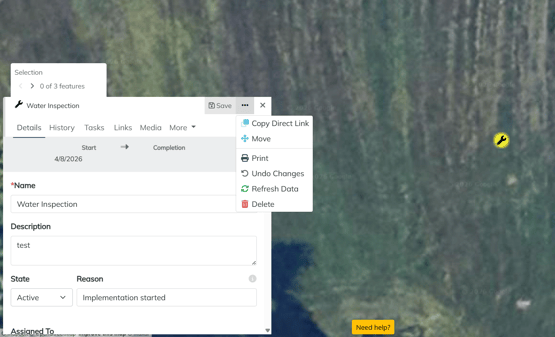
After you select print, the print preview window will appear. The preview will include the feature details of the work order with a thumbnail of the work order's location. Select Print or Download.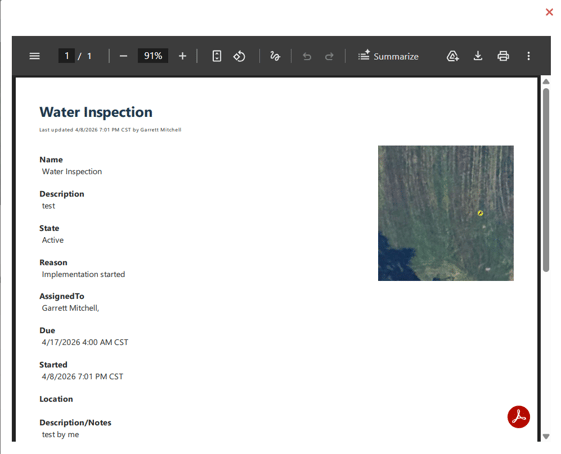
Exporting a Work Order
To Export a work order as a CSV (As an Editor)
Go to the Result Window. Select your layer using the drop down menu on the left side of the result window. Select the download button on right side of results window. A CSV will download to your download folder. e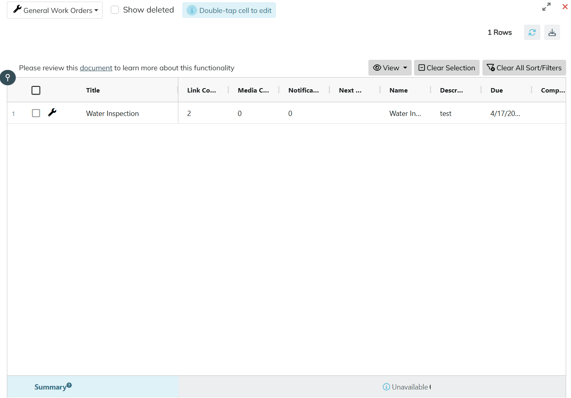
Exporting a work order using the export tool (Admins Only)
Open the Tool bar and select Export

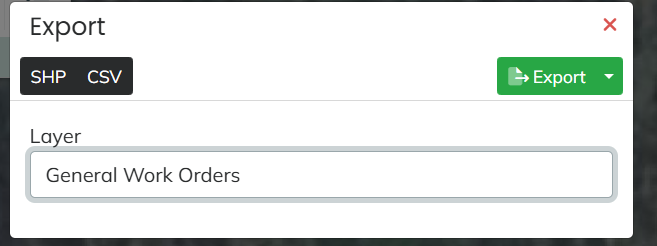
Select the layer you want to download. Choose between exporting as a CSV or Shapefile in the left corner. Select Export