![header-logo.png]](https://service.iamgis.com/hs-fs/hubfs/IamGIS_Theme_2023/Images/header-logo.png?height=40&name=header-logo.png)
Turning on Map Labels
In Layer Settings under the Style Tab, select the default icon. Under Icon Size, toggle on 'Show Label'. Once Toggled on, select from the System variables or Field variables. You can select multiple variables to build out the label that will appear under the assets.
These will appear in brackets. Once finished, click Save. 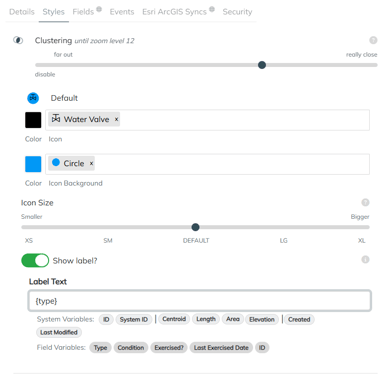
Creating Sequential Asset IDs
The system will auto create IDs for each new and existing asset.
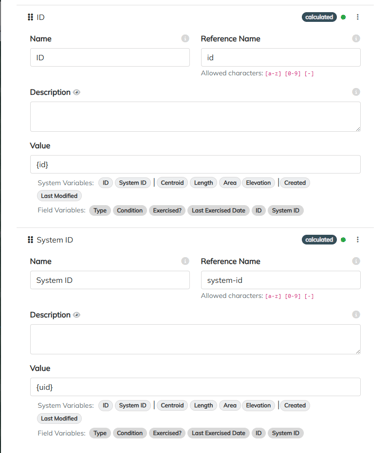
In Layer Settings under the Fields Tab, create a new Calculated Field
Under System Variables, select either ID or System ID
ID {ID} - ID will provide the ID based off how many total assets are in the field. The newest assets will have the highest number
System IDs {UID} - System ID's are 8 digit IDs that will be placed on each asset, giving them a unique identifer.